Select
Selects (sometimes known as "dropdowns" or "pickers") allow users to choose from a list of options in a limited space. The list of options can change based on the context.
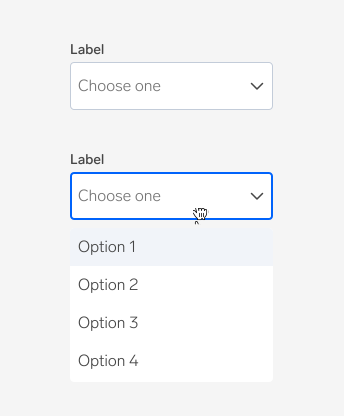
- Gives the user access to a list of actions, choices or functions.
- Useful if you have more than 5 options.
- Dropdowns emphasizes one option, while radio buttons equalizes them.
Anatomy
Options
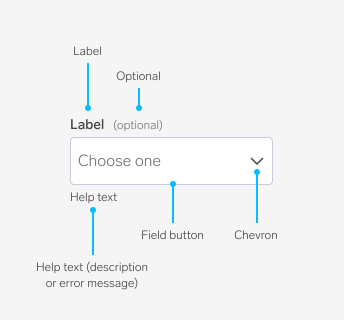
Label
Selects should always have a label. The only exception to this rule is when a select is used in a row of filters. In this case the label becomes the text inside the select. Labels should be placed on top of the select. This gives room for long copy, and responsive layouts.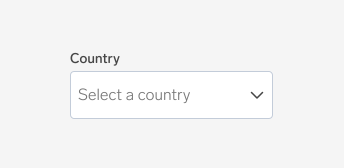
Placeholder
The placeholder text, also commonly known as “ghost text,” prompts a user to select an option from the select menu. It disappears once a user selects an option.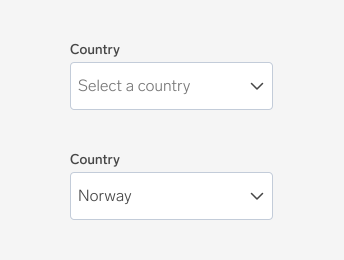
Value
The value shows the option that a user has selected.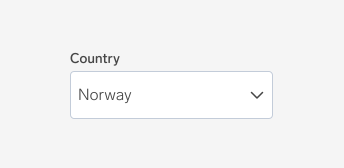
Width
The width of a select can be customized appropriately for its context.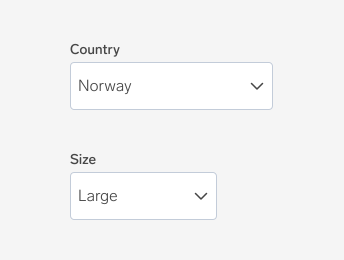
Optional
Selects can be marked as optional. This is denoted with text added to the end of the label — “(optional)”.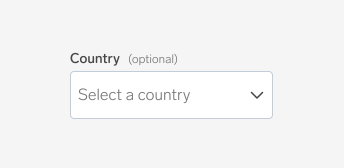
Error
A select can be marked as having an error to show that a value needs to be entered in order to move forward or that a value that was entered is invalid.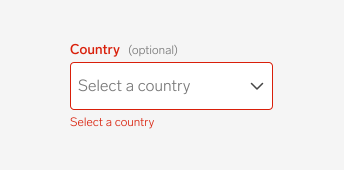
Disabled
A select in a disabled state shows that an input field exists, but is not available in that circumstance. This can be used to maintain layout continuity and communicate that it may become available later. Where possible, we try to avoid using disabled states altogether.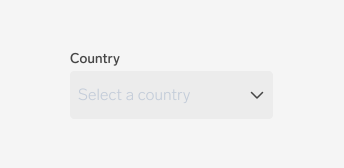
Read-only
Selects have a read-only option for when content in the disabled state still needs to be shown. This allows for content to be copied, but not interacted with or changed.
Help text
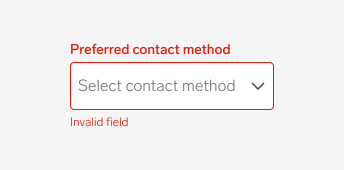
A select can have help text below the field to give extra context or instruction about what a user should select. The help text area has two options: a description and an error message. The description communicates a hint or helpful information, such as specific requirements for what to choose. The error message communicates an error for when the selection requirements aren’t met, prompting a user to adjust what they had originally selected.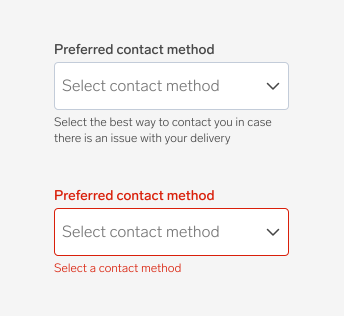
Behaviors
Minimum width
The minimum width for a select is 2× the height of the field button. This guarantees that small pickers are readable and easy to target on touch devices.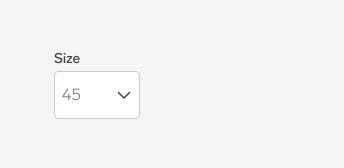
Text overflow
When the field label and menu text are too long for the available horizontal space, they wrap to form another line. The field text itself truncates at the end, but the text can be shown in full in the menu.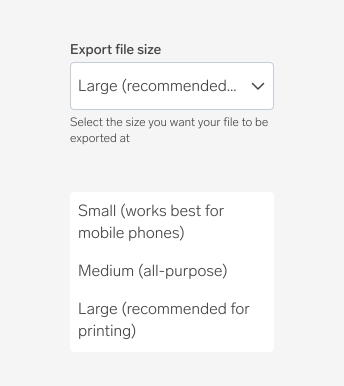
Help text overflow
When the help text is too long for the available horizontal space, it wraps to form another line.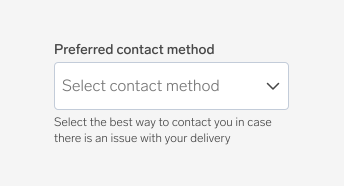
Menu height
The picker menu can be as tall as necessary to show as many options as possible in the available space. There is no maximum height.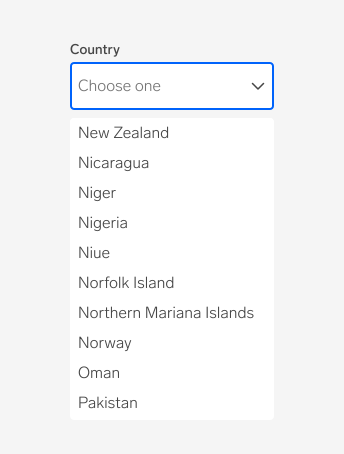
Usage guidelines
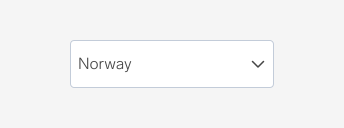
Include a label
Every picker should have a label. A picker without a label is ambiguous and not accessible.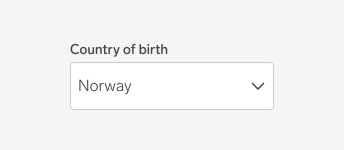
Keep menu items concise
Keep menu items short and concise. Long menu items that cause text to wrap to multiple lines are discouraged. If text wrapping becomes a frequent concern, consider revising the text or use alternative UI patterns that will give your content more space.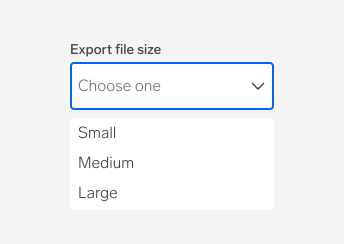
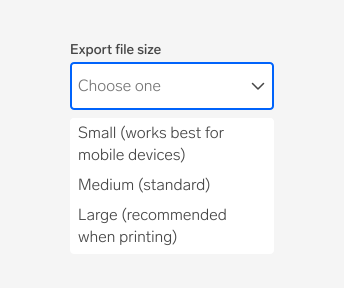
Choose an appropriate width
When possible, the field button width should be wide enough so that any chosen menu items can be displayed in full.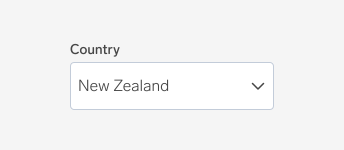

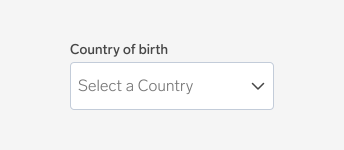
Follow capitalization rules
Field labels, placeholder text, and menu items should be in sentence case.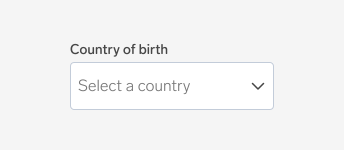
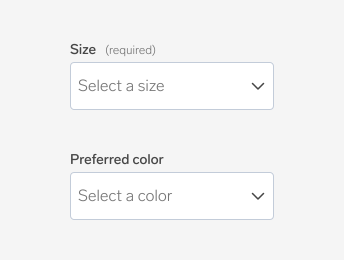
Mark fields that are not required as optional
In a form, mark the fields that are not required as "optional". This lets the user know that they can choose whether to answer the questions or not, leaving it up to them how much extra information they want to share above the required information that is needed to complete the task.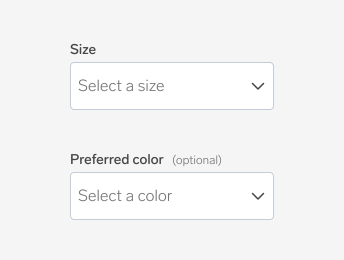
Use help text to show context
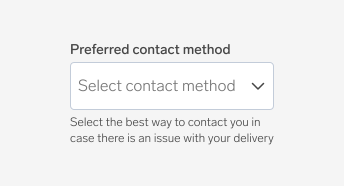
A select’s description in the helps to communicate what to select or how to select an option. This includes information such as:- An overall description of the select options
- Hints for what kind of information to choose
- More context for why a user needs to make a selection
The help text should add extra context or description to the label. Don’t include help text unless it is actually relevant or meaningful to a user.
Switch help text with error text
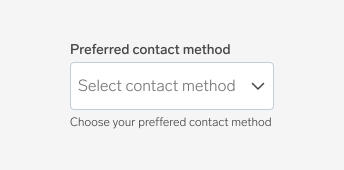
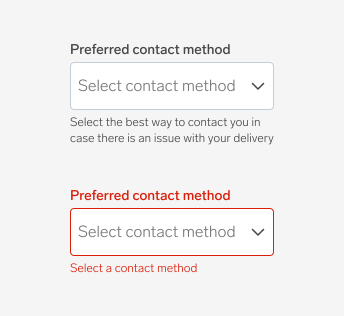
The help text area also displays an error message. When a select already includes help text and an error is triggered, the help text is replaced with error text. Once the error is resolved, the help text description reappears below the select.Since one gets replaced by the other, the language of the help text and error text need to work together to convey the same messaging. Help text explains the requirement or adds supplementary context for how to complete the interaction. Error text tells a user how to fix the error by re-stating the selection requirements or describing the necessary interaction. Make sure that the help text and the error text include the same essential information so that it isn’t lost if one replaces the other (e.g., minimum requirements).
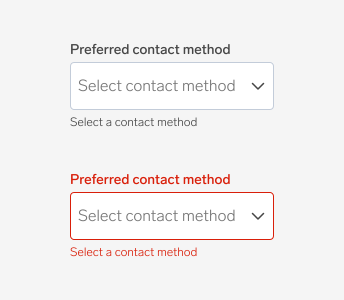
Write error text that shows a solution
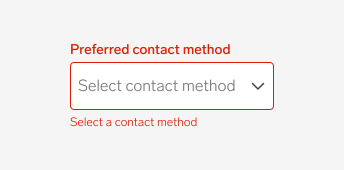
Write error messaging in a human-centered way that guide a user and show them a solution. Ambiguous error messages can be frustrating and even shame-inducing for users. Also, keep in mind that something that a system may deem an error may not actually be perceived as an error to a user.Error text should be written in 1-2 short, complete sentences and in a clear and straightforward way. End sentences with a period, and never with an exclamation point. For selects, the nature of the error is often related to something that needs to be fixed for in-line validation, so a helpful tone is most appropriate. For example, if someone were to miss selecting an option to note as their preferred contact method, write the error text like you’re offering a hint or a tip to help guide them to understand what needs to be selected: “Select a contact method.”