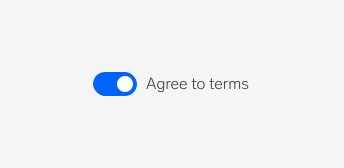
Switch
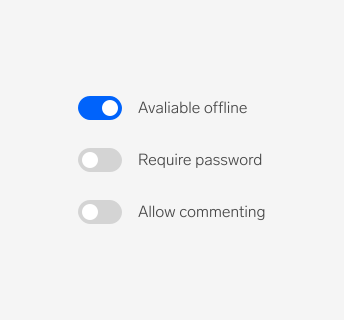
Switches allow users to turn an individual option on or off. They are usually used to activate or deactivate a specific setting.
Anatomy
Options
Label
Switches should always have labels. When the label is not defined, a switch becomes standalone. Standalone switches should only be used when their connection to other components is clear and they give sufficient context — for example, in application panels.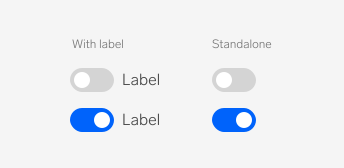
Selection
Switches can either be selected or not selected. They cannot be in an indeterminate state (unlike checkboxes). When a switch represents multiple values that are not identical, the switch should appear as not selected.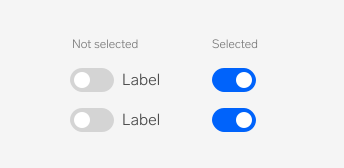
Disabled
A switch in a disabled state shows that a selection exists, but is not available in that circumstance. This can be used to maintain layout continuity and communicate that an action may become available later.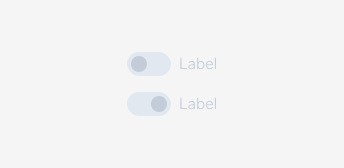
Behaviors
Keyboard focus
A switch can be navigated using a keyboard. The keyboard focus state takes the switch’s visual hover state and adds a blue ring to the switch in focus.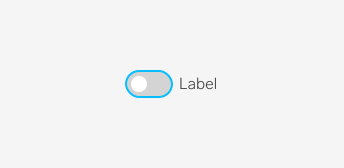
Text overflow
When the label is too long for the horizontal space available, it wraps to form another line.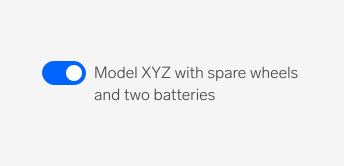
Usage guidelines
Switch or checkbox
Switches are best used for communicating activation (e.g., on/off states), while checkboxes are best used for communicating selection (e.g., multiple table rows). Switches, unlike checkboxes, can't have an error state.